
Most commit messages are useless.
"fix stuff"
“update code"
"changes"
They work in the moment. They fail six (actually one) months later.
Commit messages are not for today or for something special. They are for:
- your future self
- your teammates
- automation pipelines
- changelog generators
- semantic versioning
Writing structured commit messages takes discipline. Under pressure, discipline disappears. Even without the pressure sometimes, just because as developers, we are lazy by nature.
This is where GitHub Copilot becomes interesting.
Instead of using Copilot just for code, you can use it as a commit quality guardrail. With the right instructions, it generates strict Conventional Commit messages automatically, directly inside:
- VS Code
- JetBrains Rider
Why Conventional Commits Still Matter
Conventional Commits are not about style.
They are about structure.
The format is simple:
type(scope): description
Example:
feat(auth): add JWT token validation
fix(api): handle null response in user endpoint
refactor(ui): simplify navbar component
Readable Git History
Compare:
update stuff
fix bug
changes
With:
fix(auth): prevent null pointer on login
feat(api): add user filtering by role
ci(github-actions): add build cache
The second history is self-documenting.
Using GitHub Copilot for Commit Messages in VS Code
Copilot can generate commit messages directly from the Source Control panel.
By default, generation is generic.
Custom instructions make it strict.
Add this to your settings.json:
"github.copilot.chat.commitMessageGeneration.instructions": [
    { "text": "Follow Conventional Commits: type(scope): description." },
    { "text": "Use lowercase type and scope." },
    { "text": "Use imperative mood: 'add', 'fix', 'update', not past tense." },
    { "text": "Keep subject under 50 characters. No period." },
    { "text": "Describe the intent clearly. Avoid vague messages like 'update code'." },
    { "text": "Use only these types: feat, fix, docs, style, refactor, perf, test, chore, ci." },
    { "text": "Include a scope when the change targets a specific area." },
    { "text": "Ensure each commit represents one logical change." },
    { "text": "Add a body when needed, separated by a blank line." },
    { "text": "Use bullet points (*) in the body for multiple changes." },
    { "text": "Explain why the change was made, not only what changed." },
    { "text": "Add BREAKING CHANGE: in the footer when applicable." }
]
After staging changes, generate the commit message.
Instead of:
update login logic
You’ll get:
fix(auth): prevent null pointer on login

* add null check for user object
* improve error handling for invalid credentials
Copilot becomes consistent because the rules are explicit.
Using GitHub Copilot for Commit Messages in JetBrains Rider
In Rider, Copilot integrates in the Commit tool window.
With strict instructions, you can enforce full compliance.
Example instruction structure:
Follow the Conventional Commits specification strictly.

<type>(<scope>): <short description>

All sections except the first line are optional.
Use only these types: feat, fix, docs, style, refactor, perf, test, chore, ci.
Max 50 characters. Imperative mood. No period.
Each commit must represent one logical change.
Use BREAKING CHANGE: footer when applicable.
Example output:
feat(auth): add refresh token support

* implement refresh token endpoint
* update token validation logic
* improve session security
Breaking change example:
refactor(api): rename user endpoint

BREAKING CHANGE: /users endpoint is now /v2/users
Go to **Settings **> **Tools **> GitHub Copilot > Git Commit Instructions > Global.
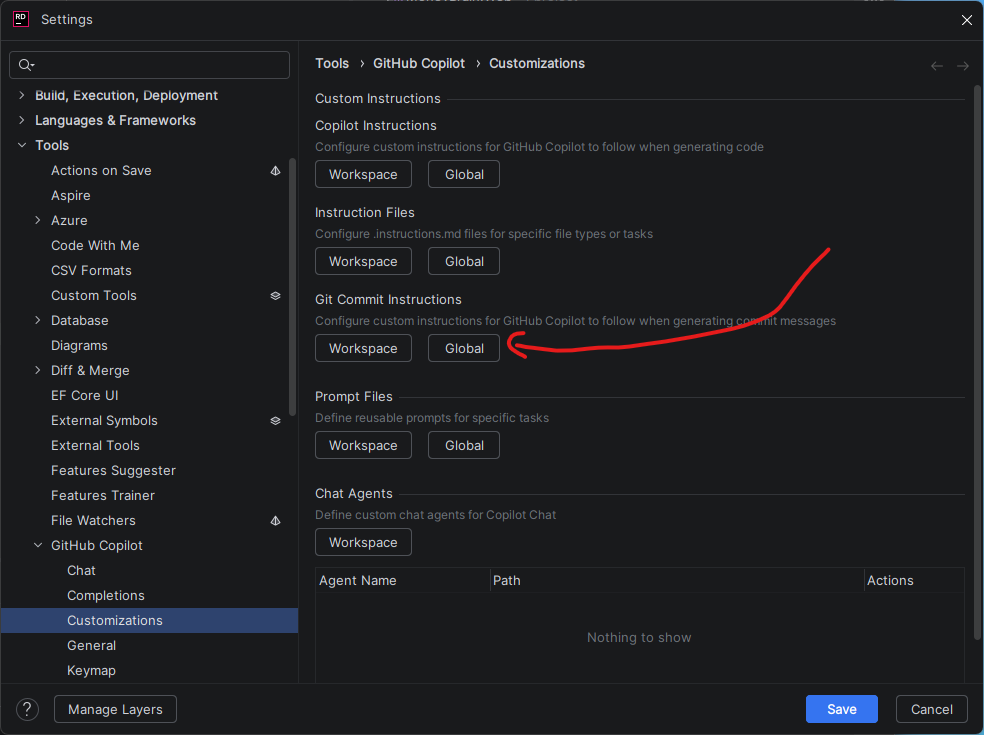
Rider allows more verbose enforcement.
VS Code favors compact rule lists.
Both approaches work.
Making Copilot Strict (Not Creative)
Copilot predicts text.
Constraints reduce variance.
Key principles:
- Write hard rules, not suggestions
- Limit allowed types
- Enforce atomic commits
- Require proper breaking change footers
- Review output before committing
Copilot is not replacing judgment.
It removes repetitive formatting work.
When configured correctly, writing a proper Conventional Commit becomes easier than writing a bad one.
👀 GitHub Copilot quota visibility in VS Code

If you use GitHub Copilot and ever wondered:
- what plan you’re on
- whether you have limits
- how much premium quota is left
- when it resets
I built a small VS Code extension called Copilot Insights.
It shows Copilot plan and quota status directly inside VS Code.
No usage analytics. No productivity scoring. Just clarity.
👉 VS Code Marketplace:
https://marketplace.visualstudio.com/items?itemName=emanuelebartolesi.vscode-copilot-insights