Stop Coding Through Remote Desktop. Use VS Code Remote Tunnels Instead

There is a pattern I keep seeing with customer environments.
You get access to a VM for development. The code stays there. The dependencies are already there. The network access is there too. On paper, it looks fine.
Then reality starts.
You are expected to work through Remote Desktop, as if software development were the same thing as clicking around a server. It is not. Remote Desktop is tolerable for admin work. For actual coding, it is a bad experience. The editor feels disconnected from your normal workflow. Shortcuts feel wrong. Terminals are awkward. Moving between tools is slower than it should be. You are technically “inside” the environment, but you are not really productive.
In my case, there was another constraint. I could not even sign into VS Code on the customer VM with my own account, which meant no normal setup, no synced configuration, and no easy way to work the way I usually do.
That is where VS Code Remote Tunnels becomes the right solution.
The real-world scenario
Instead of living inside a remote desktop session, you expose the development environment through a secure tunnel and connect to it from your local VS Code. The code stays on the customer VM. The execution stays on the customer VM. But the editor experience comes back to your own machine, where you can actually work properly.
Remote Tunnels is the answer I would pick for that every time.
What VS Code Remote Tunnels actually does
VS Code Remote Tunnels gives you a way to connect to a remote machine from VS Code without setting up SSH access. The official model is simple: you create a secure tunnel from the remote machine, and then connect to it from a VS Code client somewhere else. Microsoft’s documentation describes it as connecting to a remote machine, such as a desktop or VM, through a secure tunnel using Microsoft dev tunnels.
That matters because it changes where the work happens.
The code stays on the remote VM. The terminals run on the remote VM. Debugging happens against the remote VM. VS Code installs its server-side components on that machine, and your local VS Code becomes the client for that remote environment.
Another practical point is that SSH is not required. That is one of the biggest advantages in customer environments, because SSH is often blocked, restricted, or simply not part of the approved setup. Remote Tunnels gives you another path that still keeps the work inside the target machine.
You can then connect in two main ways. You can use local desktop VS Code with the Remote - Tunnels extension, or you can connect through VS Code for the Web in the browser. That browser path is useful when you need access from a locked-down device, although the desktop client is usually the better experience.
There is one important limitation worth stating clearly. The VS Code Server used behind this model is designed for a single user, not as a shared multi-user development service. Microsoft also states that hosting the VS Code Server as a service is not allowed. So this is a personal remote development setup, not a team-hosted IDE platform.
That is why Remote Tunnels fits this customer scenario so well. It gives you remote development, not remote desktop. That is the real difference.
Why it fits this customer use case
This is exactly the kind of setup where Remote Tunnels is the right answer.
The customer wants the work to stay inside their environment. That is reasonable. The code, dependencies, network access, and internal services are already on the VM. Moving everything to a local machine would create more friction, more approvals, and in some cases more risk.
At the same time, working through Remote Desktop is a bad trade.
How to set it up
The setup is surprisingly simple. That is part of why this works so well in customer environments.
First of all, you need to download VS Code Server.
You can download it directly from the official Download page of Visual Studio Code website (https://code.visualstudio.com/Download)
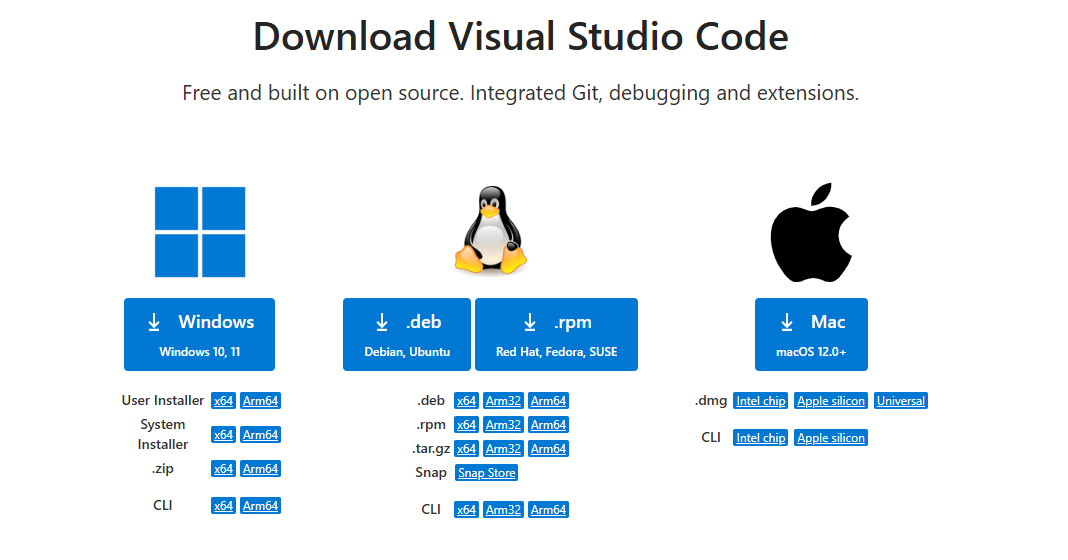
From this page, as you can see in the image above, you can select your OS and your CPU family.
You can also use VS Code with the UI, but it doesn't make sense if you want to install only the server part.
Then you start the tunnel with:
code tunnel
When you run that command, VS Code downloads and starts the VS Code Server on that machine, then creates the tunnel for remote access. The first time, you will also be asked to accept the server license terms, unless you pass the CLI flag to accept them up front.
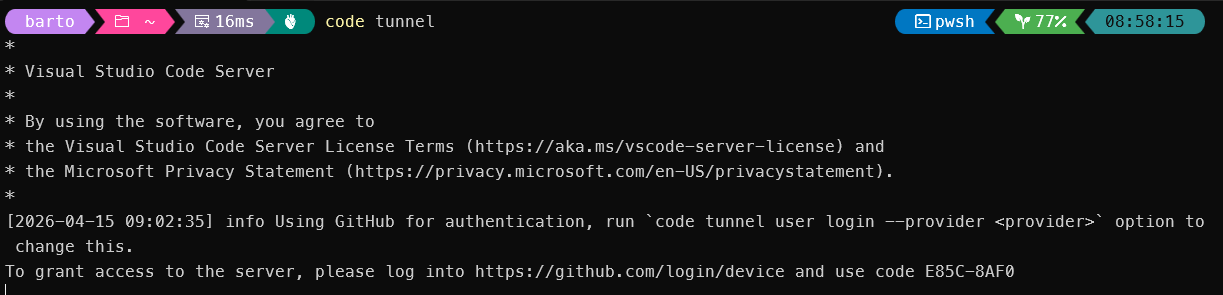
After that, the CLI gives you a vscode.dev URL tied to that remote machine. When you open that URL the first time from a client, you will be asked to authenticate with GitHub. That authentication is how VS Code checks that both sides are tied to the same account and that you are allowed to access the remote machine.
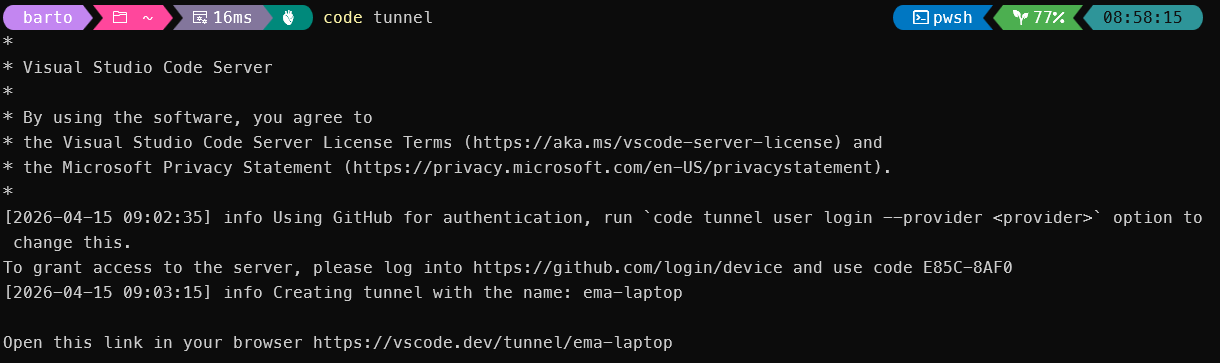
There are two practical ways to connect.
The first is through the browser using that vscode.dev link. This is the fastest way to prove the setup works.
The second, and usually better option, is from your local desktop VS Code. For that, install the Remote - Tunnels extension, open the Command Palette, and run Remote Tunnels: Connect to Tunnel. You can also see available machines in the Remote Explorer.
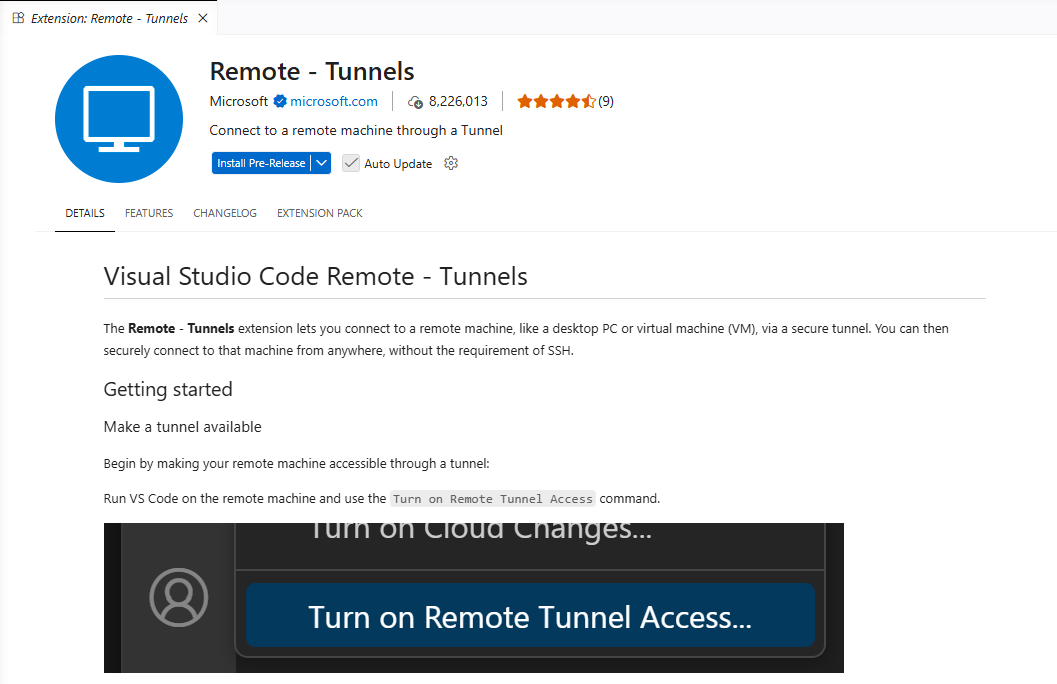
So the basic flow looks like this:
- On the customer VM, run
code tunnel - Authenticate when prompted
- Open the generated
vscode.devURL or connect from local VS Code - Start working on the remote codebase from your own editor
There are two practical details worth calling out.
First, the tunnel is only reachable while VS Code is running there, unless you explicitly set it up to keep running. Microsoft documents a service mode for this with code tunnel service install, and there is also a --no-sleep option to help prevent the remote machine from going to sleep.
Second, this does not require VS Code to open inbound listeners on the VM. Microsoft states that hosting and connecting use authenticated outbound connections to the Azure-hosted tunneling service, and that no firewall changes are generally necessary. That is one of the reasons this can fit locked-down environments better than people expect.
Trade-offs and limits
Remote Tunnels is a strong solution for this scenario, but it is not magic. It has constraints, and it is better to say them clearly.
The first limit is the trust model. To create and access a tunnel, you authenticate with GitHub or Microsoft, and the tunnel itself is brokered through Microsoft’s dev tunnel service. That is exactly why setup is easy, but it also means some customer environments may reject it on policy alone, even if the technical setup works.
The second limit is extension support, especially in the browser. The desktop VS Code client is usually the best experience. The browser option is useful, but not every extension behaves the same way there. VS Code’s remote documentation is explicit that extensions may run in different locations, local or remote, depending on the extension type and the client being used.
The third limit is that this is not a shared remote IDE platform. Microsoft states that the VS Code Server is intended for a single user and that hosting it as a service is not allowed. So this is a personal remote development workflow, not something you should pitch as a team-wide hosted development environment for many users.
The fourth limit is operational persistence. A tunnel is easy to start, but if the remote machine sleeps, shuts down, or the tunnel service is not kept running, your session is gone until it comes back. Microsoft documents service mode and sleep-related options for that reason.
👀 GitHub Copilot quota visibility in VS Code

If you use GitHub Copilot and ever wondered:
- what plan you’re on
- whether you have limits
- how much premium quota is left
- when it resets
I built a small VS Code extension called Copilot Insights.
It shows Copilot plan and quota status directly inside VS Code.
No usage analytics. No productivity scoring. Just clarity.
👉 VS Code Marketplace:
https://marketplace.visualstudio.com/items?itemName=emanuelebartolesi.vscode-copilot-insights
Originally published on Dev.to
Read the original post